Setting up automated replies in your Connected Workshop is an efficient way to manage business customer expectations, and ensure your fleet managers feel connected, even when you are busy or closed for the day.
How to set autoreply to your workshop
Step 1. Access Your Settings
You must be a Workshop Manager to access these settings.
Go to the top menu and ensure your specific workshop is selected.
Navigate to Workshop Settings and scroll down to the section titled Auto reply customers:
Step 2. Choose Your Timing
You will see two options:
Within workshop opening hours: Best for setting expectations during a busy shift.
Outside workshop opening hours: Best for informing customers of your available days and times:
Step 3. Write Your Message
Click the tile you want to edit. A module will open where you can write your message.
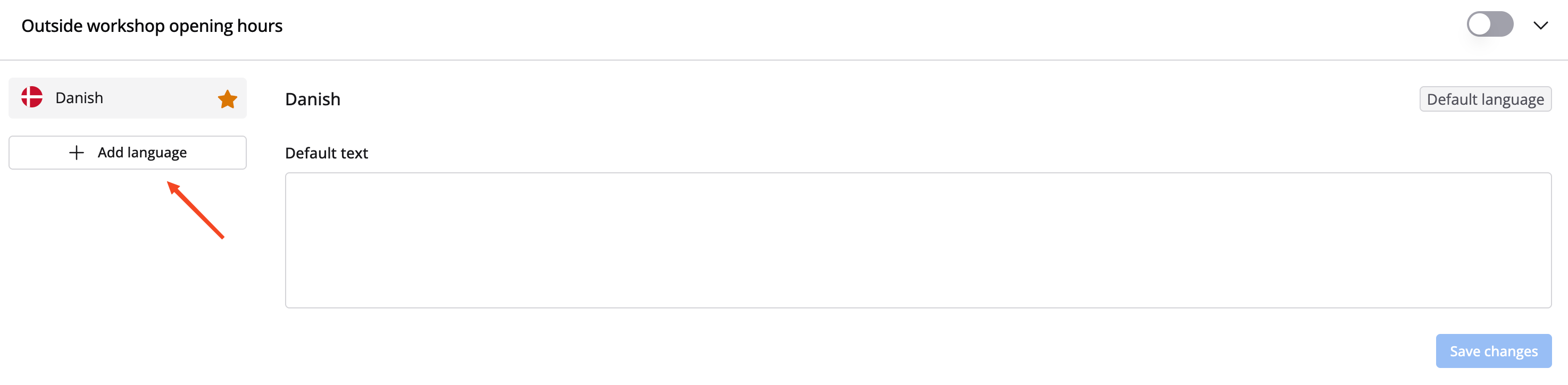
Multilingual Support: You can write messages in several languages. Click the plus symbol (+) on the left to add a new language:
Setting a Default: Always select one language and click "Set as default." If a customer writes to you in a language you haven't specifically set up, they will receive the default message (e.g., English):
 Step 4. Save Your Changes
Click "Save changes" at the bottom of the module once your text is ready.
How it Looks for the Customer
Once enabled, the customer will see your automated message appear instantly in their app chat history as soon as they send an inquiry, keeping the dialogue professional and transparent: