Linking a vehicle to a fleet connects the asset to the correct fleet manager and enables automated fleet workflows. This guide covers how to initiate a link and maps out the three operational paths based on the status of the business: an active fleet, an existing One Business ID profile, or an entirely unregistered company.
Before You Start
Ensure you have the following ready before beginning the workflow:
The vehicle must already be created in ConnectedWorkshop.
The company's registered VAT number or official fleet name.
Confirmed user permissions to link vehicles to a fleet.
Step 1: Initiate the Fleet Link
Navigate to the Vehicles tab in the left-hand menu and select the vehicle you wish to link.
On the vehicle details page, click either Activate vehicle or Add fleet.
In the pop-up modal that appears, enter the Company VAT number or fleet name into the search field and click Search:
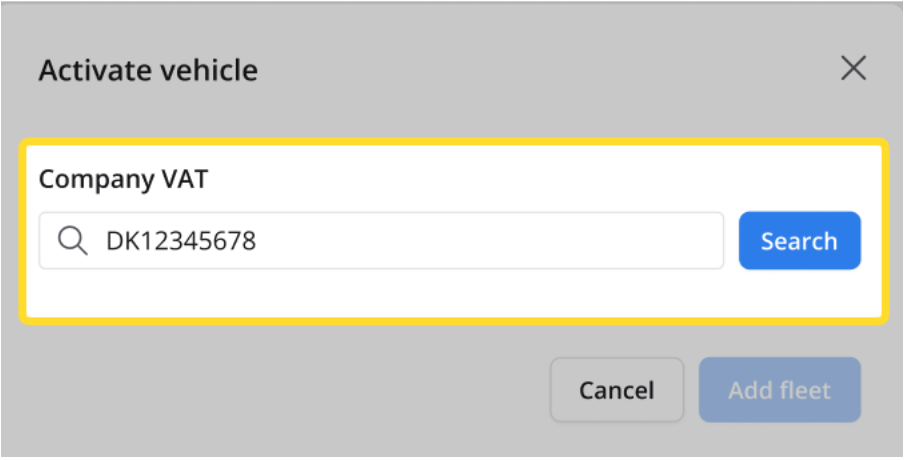
The system will now branch into one of three paths based on your search results.
Path A: The Fleet Already Exists
Follow these steps if the company is already registered and active in the system:
Locate the correct company name listed under the Results section.
Click Add fleet to confirm the link:
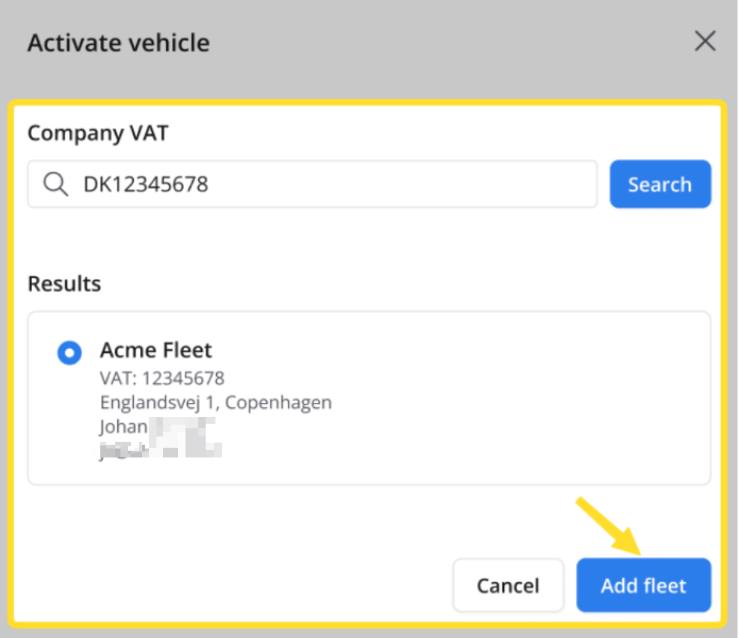
Expected Outcomes
If the fleet is active: A success message will appear confirming that the vehicle has been successfully added to the fleet:

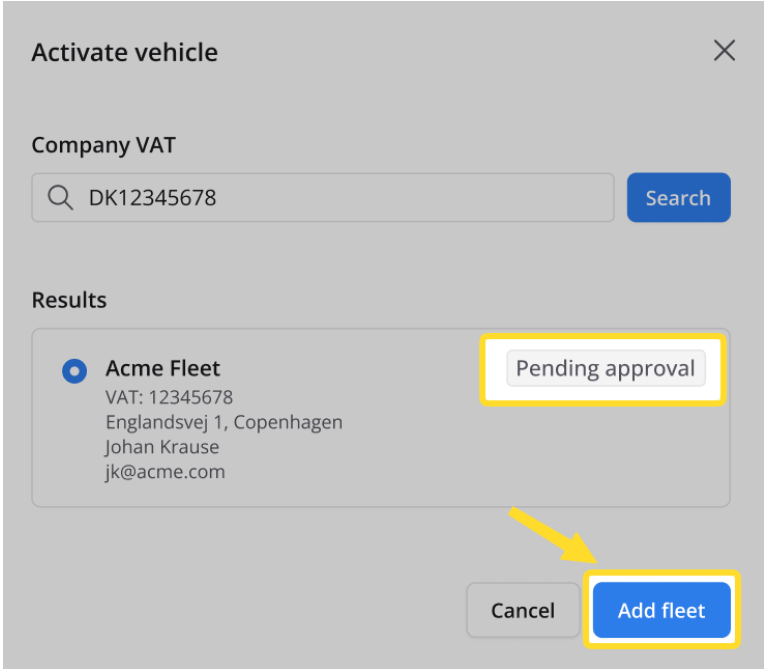
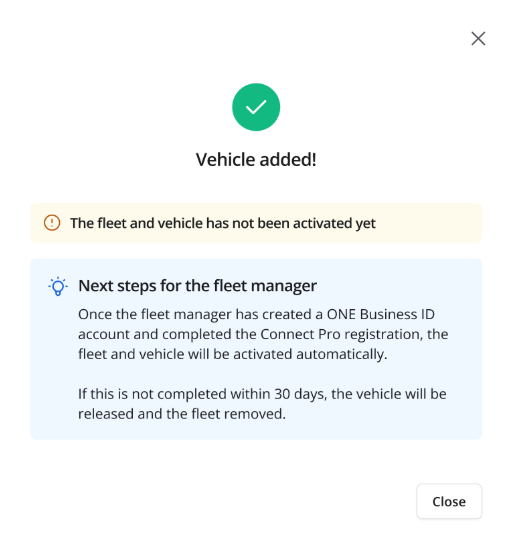
If the fleet is pending approval: The vehicle will still be linked, but a notification will explain that neither the fleet nor the vehicle are activated yet:
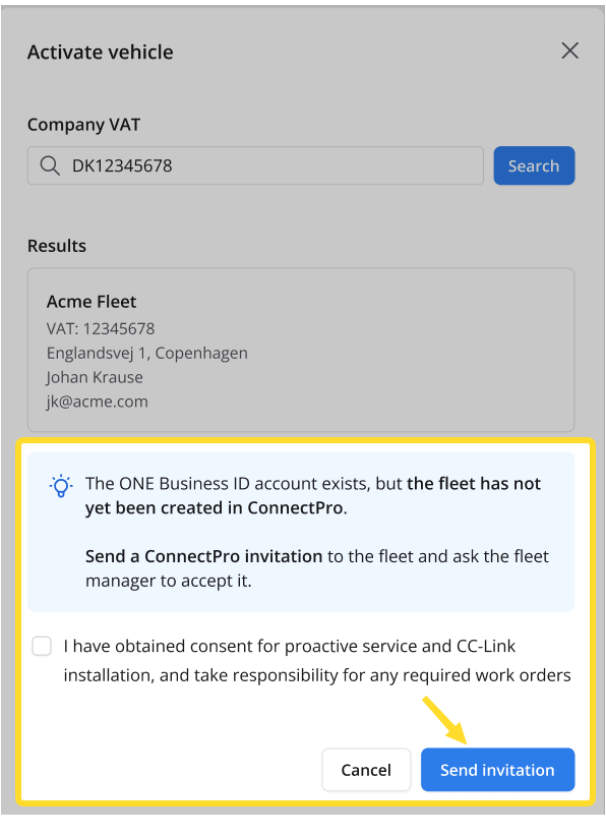
Path B: One Business ID Exists, but No Fleet is Created
Follow these steps if the company has a registered One Business ID profile but has not yet set up a fleet in Connect Pro:
Select the correct company from the results list.
A system message will notify you that the One Business ID account exists, but the fleet must be created in Connect Pro.
Review and tick the mandatory data consent statement in the modal window.
Click Send invitation to dispatch a Connect Pro registration link directly to the fleet manager:
Expected Outcomes
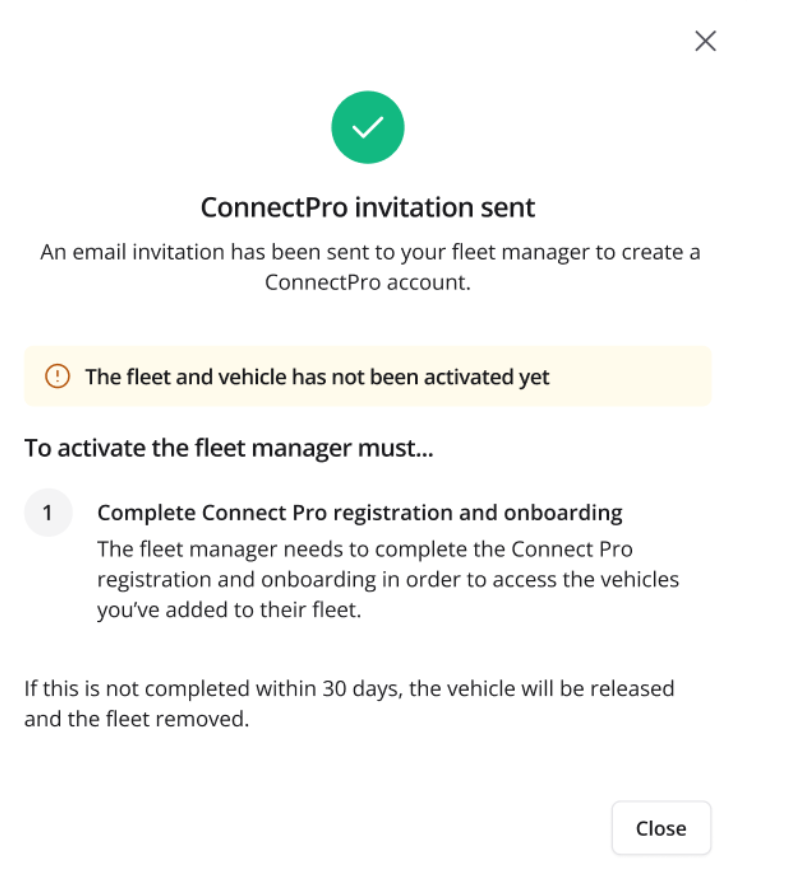
You will receive a confirmation message stating: Connect Pro invitation sent.
The vehicle link remains pending. The fleet manager must complete their Connect Pro onboarding before the fleet and the vehicle become fully active :
Path C: The Fleet Does Not Exist
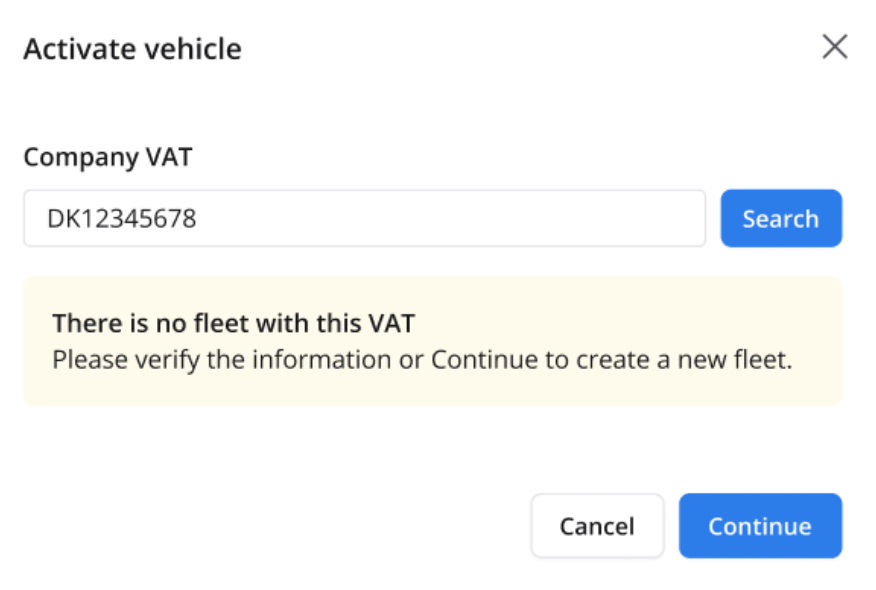
Follow these steps if the system returns a message indicating that no company matches the entered VAT number:
Verify the accuracy of the VAT number. If correct, click Continue to create a new fleet profile:
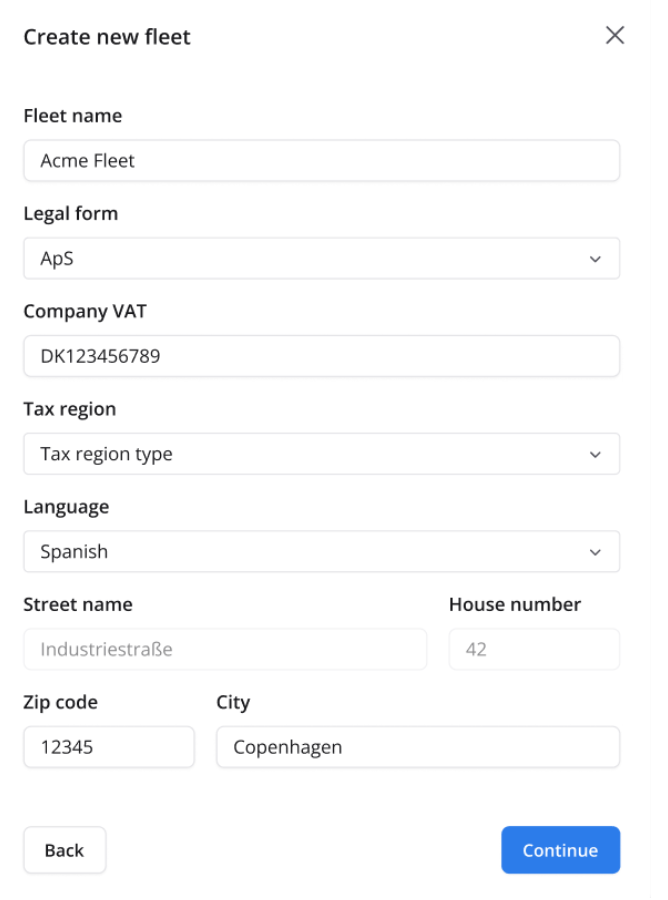
Complete the Fleet legal details form, ensuring the following required fields are populated:
- Fleet Name
- Legal Form
- Company VAT
- Tax Region
- Physical Address
Click Continue :
Complete the Fleet owner details form by entering the administrator's first name, last name, and corporate email address:
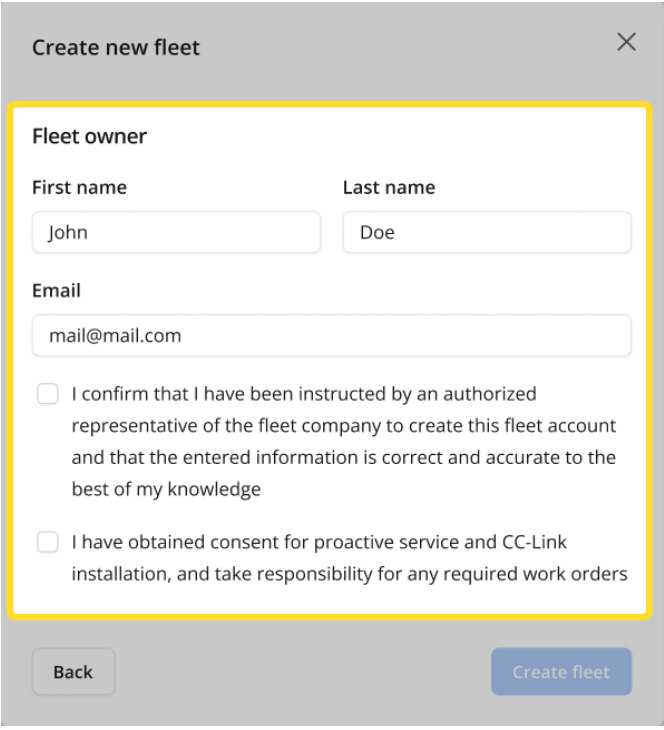
Review and tick the mandatory declaration and consent checkboxes.
Click Create fleet.
Expected Outcomes
You will see a confirmation message stating: One Business ID invitation sent:
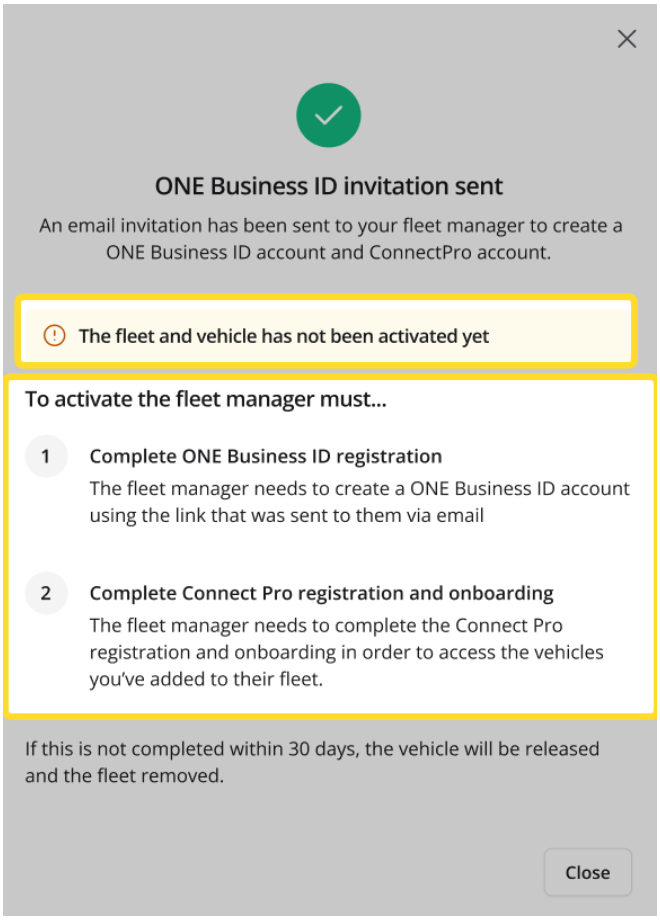
The system will automatically dispatch invitations prompting the fleet manager to complete both their One Business ID registration and their Connect Pro onboarding. The fleet and vehicle will remain inactive until these steps are finished.
Summary and Next Steps
Timeline Expirations:
For both Path B and Path C, the linked vehicle is subject to a strict security time window. If the fleet manager does not complete the required One Business ID or Connect Pro onboarding within the allowed timeframe, the vehicle link will automatically expire, and the vehicle asset will be released back into the unassigned database.